
Accurate supervisor records support:
- MyTrack permissions and reporting
- Organizational charts
- Supervisor communications
- Employee reporting relationships
Please note that supervisors must have a paid appointment to compensate for the work.
How Should I Update Supervisor Records?
For most supervisor record updates, use the Employee Record Maintenance Guide and Audit Process.
The Employee Roster Audit and Update Report is the preferred method for:
- Multiple employee supervisor changes
- Leadership transitions
- Reorganizations
- Regular roster audits
Use the Supervisor Maintenance EPAF (NOAEPAF) only when updating a single employee record outside of the regular audit process.
Supervisor information in MyTrack
Position Description
Supervisor information can be found in two locations on the position description (PD).
Within the ‘General Position Information Section' in the blue box under the B#. The supervisor listed in the blue box under the B# is a direct feed from Banner. This will show the supervisor that is tied to that B# in Banner.
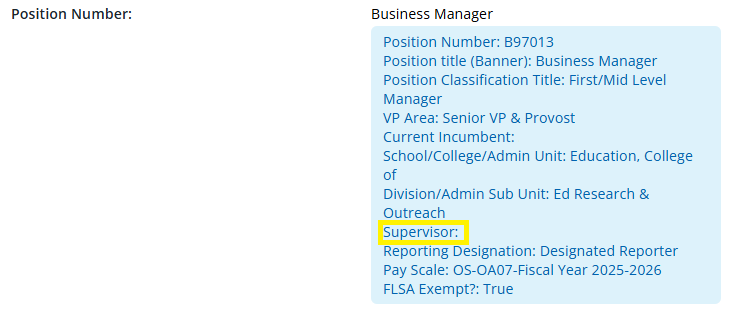
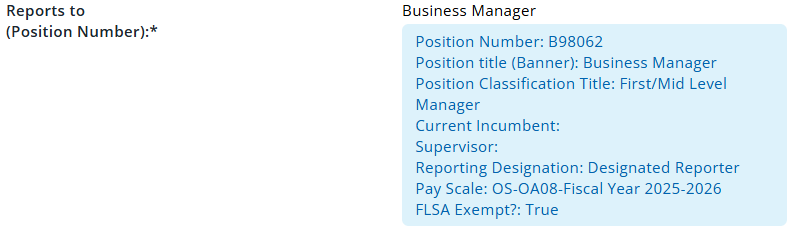
In the 'Reports to' field. The supervisor listed in the “Reports to” field is what was entered on the PD when it was created or the last time it was edited. The “Reports to” field does not integrate with Banner. If the supervisor is accurate in the blue box, you do not need to worry about updating the “Reports to” field unless you are editing the PD to prepare it for a recruitment or pay action.
User Record
The details of a MyTrack user record are created with information from Banner.
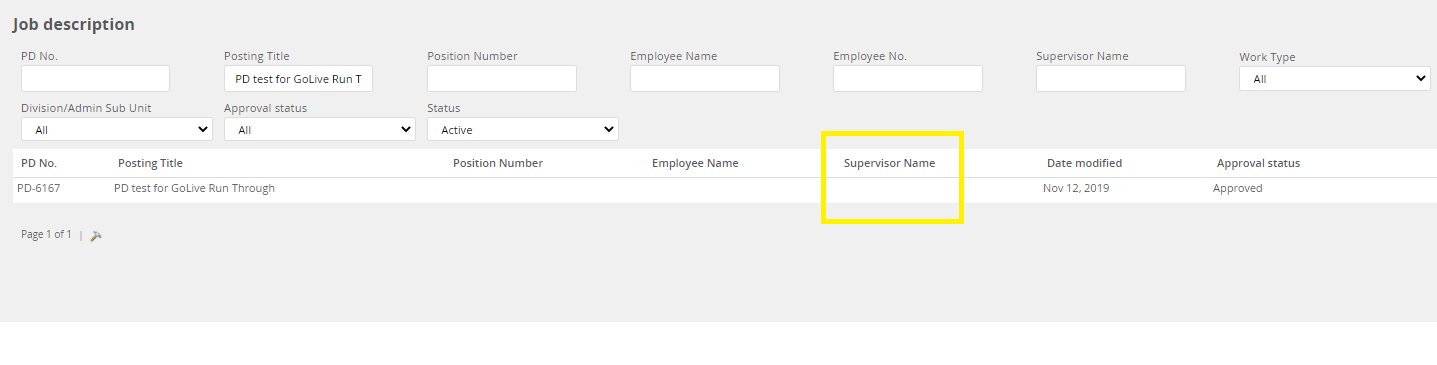
Supervisor information associated with a user record appears in MyTrack in the supervisor column in the PD library.
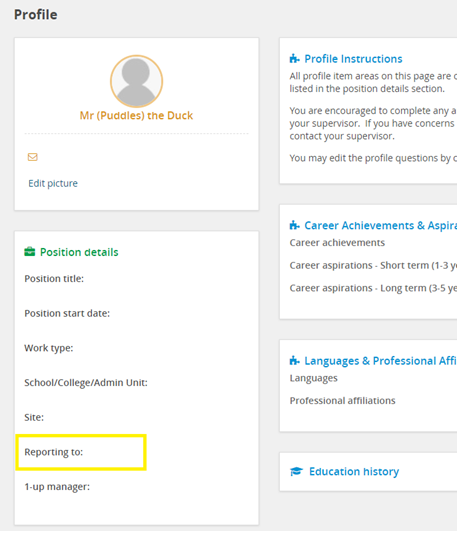
A user's supervisor is also listed in the ‘reporting to’ section of their profile.
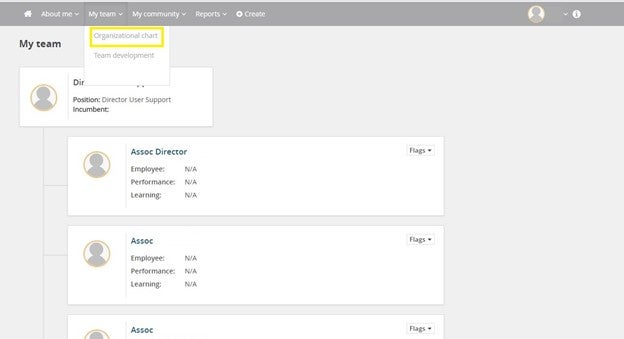
For someone who supervises it will appear in the organizational chart under ‘MyTeam’ and under 'Team Development'. To change the supervisor associated with a user record an update to Banner is required.
Situation | Process |
|---|---|
One employee record needs updating | Supervisor Maintenance EPAF (NOAEPAF) |
Multiple employee records need updating | Employee Record Maintenance Guide and Audit Process |
Leadership change, reorganization, or routine audit | Employee Record Maintenance Guide and Audit Process |
Individual Supervisor Record Updates (EPAF Method)
Use this process only for single-record supervisor updates. For multiple supervisor updates, leadership changes, reorganizations, or routine audits, use the Employee Record Maintenance Guide and Audit Process.
1. Request Access to the Supervisor Maintenance EPAF
If you do not already have access to the NOAEPAF form in Banner, request access through Payroll.
- Open the FIS/HRIS/AR User Profile Form.
- Select Add FIS/HR/AR job functions.
- Complete all required fields.
- Select Electronic Approvals under HRIS Job Functions.
- Enter Access to Supervisor Maintenance EPAF in the Remarks field.
- Click the Save button at the bottom of the form.
- A window will come up and ask you to add your Dean/Director to the “Edit” field. Add the information and click the Save button.
- Scroll to the bottom of the page and click Send Document.
If you do not need ongoing access, you may submit a Payroll Request Form (PRF) instead.
2. Complete the Supervisor Maintenance EPAF (NOAEPAF)
- Log in to Banner.
- Gather the employee and supervisor IDs, position numbers, and suffixes.
- Open Banner form NOAEPAF.
- Enter the employee ID.
- Skip Transaction Field or delete previous transaction number.
- In the Query Date field enter the first day of the month after today. (If submitting the supervisor update on 2/2, enter 3/1 as the Query Date).
- Select SUPER as the Approval Category and Type.
- Enter the employee position and suffix. Use the drop down menu for a “List of Employee’s Jobs (NBIJLST).”
- Select Go to open the Transaction tab.
- Update the Supervisor ID, Position, and Suffix fields in the New Value column.
- Save the transaction.
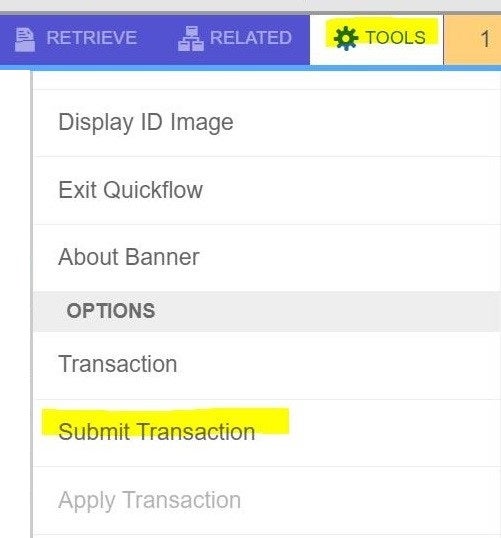
- Submit the transaction from the Tools menu. Click on the Tools icon, scroll down to Options, and click Submit Transaction.
3. Verify the Transaction Status
Check transaction status through either NOAEPAF or the NOAAPSM Summary form.
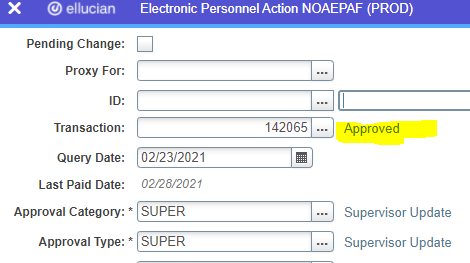
- Look up your submitted EPAFs individually, by person, on the EPAF submission form NOAEPAF. Enter the Employee ID# and click on the "..." after the 'Transaction' field.

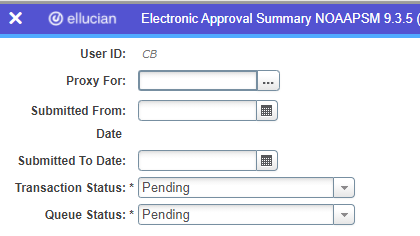
- Or you can go to the Summary NOAAPSM form in Banner.
- Waiting - Saved but not submitted.
- Approved - Submitted and awaiting application.
- Completed - Applied to the employee record.
4. Processing Timeline
- EPAFs are processed daily.
- The EPAF will update Banner NBAJOBS within 24 hours.
- MyTrack updates overnight after Banner NBAJOBS updates Banner NBAPOSN.
- The complete update process may take up to two business days.
Special Considerations
If an interim or temporary supervisor position number is used, the supervisor position must be updated when it becomes available.
Whenever possible, use the supervisor's primary position number.